Free screen recorder with audio
Record the whole screen with microphone audio, then convert or transcribe the recording without leaving the app.
Windows · macOS · Linux
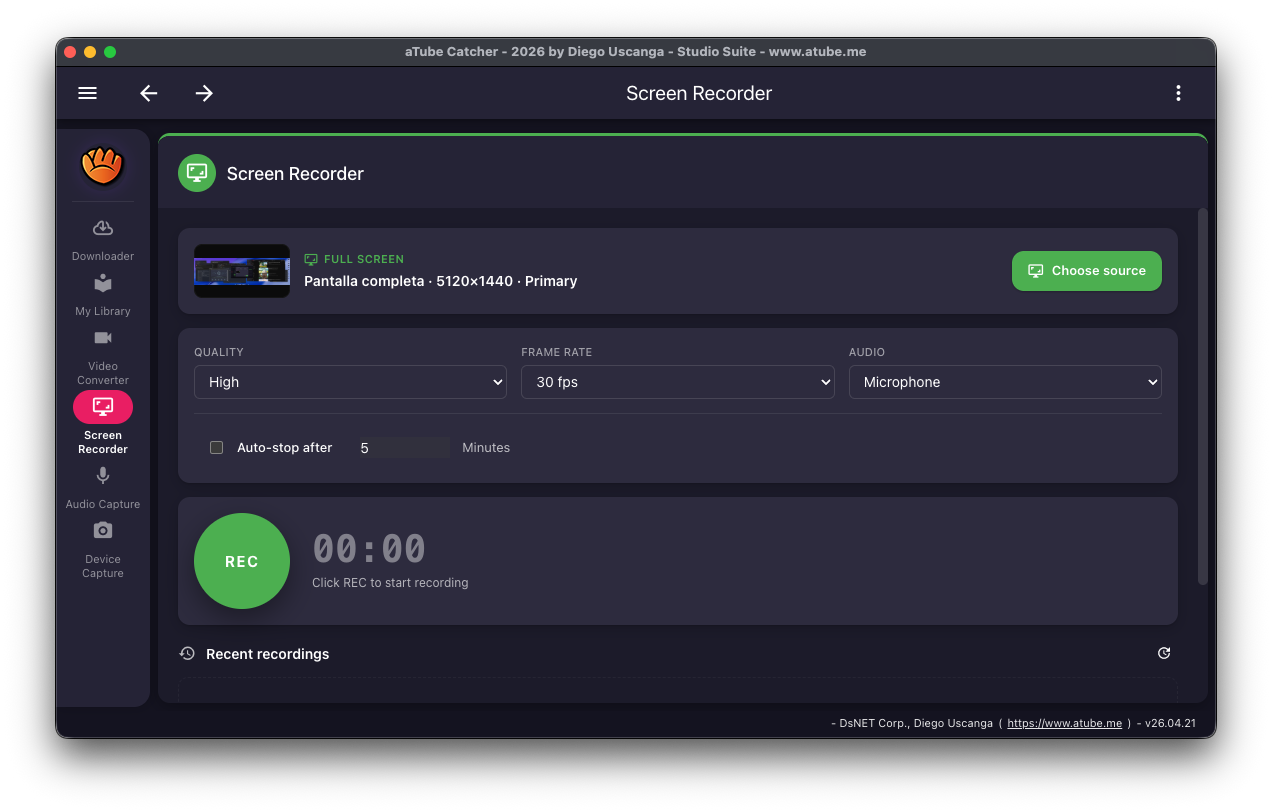
The Screen Recorder captures your desktop to a video file using FFmpeg. Use it to record tutorials, calls, gameplay or a video that can't be downloaded.
Each recording is saved as a video file and listed under "Recent recordings", ready to convert or transcribe with the other tools in the app.
Recording options
- Full-screen recording with audio Free
- Record a custom area of the screen Pro
How to record your screen
-
Open the Screen Recorder
Click Screen Recorder in the left sidebar.
-
Choose the source
Click "Choose source" and pick the screen to record.
-
Set quality, frame rate and audio
Pick a Quality, a Frame rate such as 30 fps, and the Audio input, for example your microphone. Tick "Auto-stop after" to end the recording after a set number of minutes.
-
Press REC
Click REC to start and click it again to stop. The file appears under "Recent recordings".
Platforms and limits
- Windows, macOS and Linux.
- On Linux, recording uses X11. Wayland-only sessions aren't supported.
- On Windows, recording system audio uses a virtual audio-capture device.
- Recording a custom area instead of the whole screen is a Pro feature.
Frequently asked questions
Is the screen recorder free?
Yes. Full-screen recording with audio is part of the free Community edition. Recording a custom area of the screen needs Pro.
Can I record my microphone?
Yes. Choose your microphone in the Audio menu before pressing REC.
Can I stop the recording automatically?
Yes. Tick "Auto-stop after" and set the number of minutes.
Related features
Try aTube Catcher free
The Community edition is free with no time limit. Upgrade to Pro when you need more.